
Recently I upgraded an existing vSphere 8 environment for a customer to VMware vSphere Foundation (VVF) 9.0.2. On paper it’s a vCenter upgrade, a new installer appliance, VCF Operations and then the hosts. In practice, the VCF Installer has a validation step that is a lot pickier than anything vSphere 8 ever complained about, and most of my time went into getting past it.
This post follows the order I actually did things in, including the errors and the fixes.
The plan #
Roughly, the order was:
- vCenter 8.0.3 to 9.0.2
- VCF Installer (SDDC Manager appliance) and the online depot
- VCF Operations deployment and the vCenter import
- Connecting vCenter to VCF Operations, plus licensing
- ESX 9.0.2 upgrade
- VCF Operations for Logs
- Distributed switch upgrade
Before you start #
Before touching anything, make sure you have the following in place:
- A recent file-based vCenter backup that you’ve actually checked completed successfully
- DNS records (forward and reverse) for every new appliance
- Hardware checked against the Broadcom Compatibility Guide for ESX 9
Part 1: vCenter upgrade #
Step 1: Prep #
Take the backup and confirm it’s good.
You’ll also need a temporary IP. The upgrade deploys a brand new VCSA, copies the data over, and then the new appliance takes over the old identity.
Step 2: Stage 1, deploy the new appliance #
Mount the vCenter 9 ISO, start the UI installer and pick Upgrade. Fill in the source vCenter, where the new appliance should go, the size, the datastore and the temporary network details. Stage 1 just deploys the VM, so nothing exciting here.
Step 3: Stage 2, pre-checks #
This is where it got interesting. My pre-check came back with one error and a bunch of warnings:
| Severity | Message | What I did |
|---|---|---|
| Error | Unsupported host profile versions (below 8.0) | Removed the host profiles, see below |
| Warning | Duplicate service registrations of the same type | Cleaned up with lsdoctor, see below |
| Warning | Integrated Windows Authentication is deprecated | Noted it, plan a move to AD over LDAPS or identity federation |
| Warning | Host is managed by this vCenter, DRS shouldn’t be Fully Automated | Set DRS to Partially Automated for the duration of the upgrade |
| Warning | Registered extensions may not work with the new vCenter | Checked with the vendors, re-registered after the upgrade |
| Warning | Files vLCM can’t use (baselines, old host patches) won’t be copied | Expected, baselines are gone in 9 |
Host profiles #
vCenter 9 won’t upgrade if any host profile is older than version 8.0. My first try was to detach them from the hosts and clusters, but the error stayed. The installer checks whether the profiles exist, not whether they’re attached.
So I wrote down what was configured in each profile and deleted them. Host profiles are deprecated in vSphere 9 anyway, and vLCM configuration management is the way forward, so I didn’t lose much sleep over it.
Duplicate service registrations #
This warning means there are stale entries in the lookup service (KB 316502). If it’s not a PSC HA VIP, you should clean it up, and lsdoctor is the tool for that.
One important thing first: take offline snapshots of all vCenter nodes in the SSO domain, at the same time, before you run any rebuild option. These changes are permanent.
Copy lsdoctor to /tmp on the original vCenter appliance (the 8.0.3 source, not the new one) and run the report so you know what you’re dealing with:
python lsdoctor.py -lIn my case the duplicate was cs.registry. I used the rebuild option and replaced just that one service instead of everything:
root@vcsa [ /tmp ]# python lsdoctor.py -r
...
0. Exit
1. Generate a template.
2. Replace all services with new services.
3. Replace individual service.
4. Restore services from backup file.
Please select an action: 3
...
[8] cs.registry
...
Select number: 8
You have chosen to replace the service: cs.registry -- Continue?[y/n]: y
INFO unregisterServiceType: Unregistered <service-id>
INFO unregisterServiceType: Unregistered <service-id>
INFO rebuild_single_service: Registered service: cs.registry with service ID: <new-service-id>
Then run the report again:
python lsdoctor.py -l
# INFO generateReport: No issues detected in the lookup service entries for <vcenter-fqdn>
I’d always go for option 3 over option 2 if you only have one problem service. Less to break.
After rerunning the pre-checks the duplicate warning was gone and Stage 2 went through without further issues. Once the new vCenter was up and running, I set DRS back to Fully Automated.
Part 2: VCF Installer #
Step 4: Deploy the appliance #
Deploy the VCF Installer OVA like any other OVA: hostname, IP, gateway, DNS, NTP, passwords. When it’s up, browse to it and log in.
Step 5: Online depot #
Under Depot Settings I entered the download token and immediately got this:
Error connecting to depot dl.broadcom.com: Temporary failure in name resolution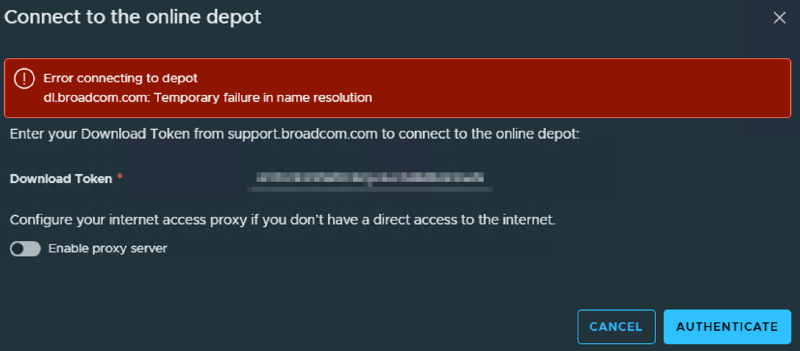
KB 404628 covers it. It’s a DNS resolution problem on the appliance. After fixing DNS as described in the KB, the depot connected fine and I downloaded VCF Operations 9.0.2.0.
Part 3: VCF Operations and the vCenter import #
Step 6: Start the wizard #
Start the VVF deployment, choose to import the existing vCenter and fill in the VCF Operations details.
The first thing that held me up: validation wouldn’t even start. The vCenter root password didn’t meet the installer’s length requirement. Once I changed it, validation kicked off. If you’re staring at a validation that never begins, check that first.
Step 7: The validation report #
The report came down to this:
- Nearly every host had more than one vmknic for vMotion
- Hosts in one cluster still had a standard switch in use
- Hosts in that same cluster had a different number of uplinks on one of the distributed switches
Step 8: Fixing everything #
More than one vMotion vmknic #
The importer wants exactly one vmknic per traffic type. The environment used multi-NIC vMotion, so most hosts had two vMotion adapters.
KB 407383 describes the workaround: remove the second vMotion vmkernel adapter, do the import, and add it back afterwards. Write down the IP settings of every adapter before you remove it, you’ll need them later.
Standard switches and uneven uplinks #
One cluster still had a standard switch hanging around, and its hosts didn’t all give the same number of pNICs to one of the distributed switches. I moved whatever was left off the standard switch, deleted it, and added the freed vmnics to the distributed switch so every host was the same.
Step 9: Deploy #
Validation passed on the next run. I started the deployment and let it finish.
Step 10: Put the vMotion vmknics back #
With the import done, I recreated the second vMotion adapter on every host using the settings I noted in step 8.
Part 4: VCF Operations configuration #
Step 11: Add vCenter #
I didn’t want to use [email protected], so I created two local SSO service accounts: a management account that VCF Operations uses for the vCenter connection itself, and an admin service account that is a member of the vCenter Administrators group. When you enter them in VCF Operations, use the full [email protected] format.
For the management account I:
- Created a custom role with the privileges from the Broadcom docs page Privileges Required for Configuring a vCenter Account
- Assigned that role to the management account on the vCenter root object, with “Propagate to children” enabled
- Added the account to the LicenseService.Administrators SSO group
After a retry in VCF Operations the connection worked. If you run vSAN, enable vSAN monitoring on the account as well.
Step 12: Licensing #
In the VCF Business Services Console, go to Licenses and click Add to VCF Operations. The license then shows up in VCF Operations, ready to assign.
This applies to 9.0.2. From 9.1 on, licensing goes through a license server, which can be deployed as part of VCF Management Services.
Step 13: Assigning the vCenter license #
Assigning the license to vCenter from VCF Operations didn’t work. Every attempt ended with this error:
Licenses could not be assigned to the selected vCenter systems.
I tried KB 416323, which describes the problem, but it didn’t help, so I opened a support case with Broadcom.
The real cause turned out to be simple. The management account was already in LicenseService.Administrators, but the admin service account was not. I assumed that being a member of Administrators would be enough, but it isn’t for license management. Once I added the admin service account to LicenseService.Administrators as well, assigning the license worked with the custom accounts.
If you use custom accounts for VCF Operations, put all of them in LicenseService.Administrators from the start.
Part 5: ESX upgrade #
Step 14: vLCM image and remediation #
For each cluster I built a new vLCM image with ESX 9.0.2.0 and the latest HPE add-on, then remediated cluster by cluster. Don’t forget the vSAN witness.
When all hosts in a vSAN cluster are on ESX 9, upgrade the vSAN disk format: select the cluster, go to Configure, then vSAN, then Disk Management, and click Upgrade.
Part 6: VCF Operations for Logs #
Step 15: Deploy #
In VVF 9.0.2, Ops for Logs is deployed from an OVA. From 9.1 on, you can deploy it from VCF Operations fleet management as part of VCF Management Services instead.
I deployed Ops for Logs from the OVA (size, network, DNS, NTP, passwords) and ran through the initial setup in the web UI.
Step 16: Connect it to VCF Operations #
In VCF Operations, add the Ops for Logs integration and activate log collection. When you go back to Ops for Logs you should see the vSphere integration listed there.
Step 17: Send ESX logs to it #
The environment didn’t have that many hosts, so I configured this manually on each one: set Syslog.global.logHost and open the syslog ruleset in the ESX firewall. From the command line:
esxcli system syslog config set --loghost='udp://<ops-for-logs-fqdn>:514'
esxcli network firewall ruleset set -r syslog -e true
esxcli system syslog reload
Check the overview dashboard in Ops for Logs to make sure all your hosts show up.
Part 7: Distributed switches #
Step 18: Upgrade the VDS #
Once every host is on ESX 9, upgrade each distributed switch: right-click the switch, then Upgrade, then Upgrade Distributed Switch. Leave this for last. You can’t roll it back, and older hosts can’t join an upgraded switch.
What I’d do differently next time #
Most of the pain came from leftovers that had been sitting in the environment for years: old host profiles, stale lookup service entries, a forgotten standard switch, multi-NIC vMotion. Next time I’d audit all of that before even downloading the installer.
A few other things worth remembering:
- Write down anything you remove, like host profile settings and vMotion IPs. You’ll need them again.
- If you use custom service accounts for VCF Operations, give them the right permissions in vCenter:
- The management account needs the custom VCF Operations role from step 11 and membership of the LicenseService.Administrators SSO group.
- The admin service account needs membership of both the Administrators and the LicenseService.Administrators SSO groups. Administrators alone is not enough.
The validator is strict, but once you treat its output as a to-do list and fix things properly, the rest of the upgrade is pretty routine. I hope this helps anyone who is planning the same upgrade.
A. Kadir Akbel